SQL Enlight Code Quality for Azure DevOps - Setup and Configuration Guide
Introduction
Section titled “Introduction”This document describes the extension features, pipeline task settings, project settings, reporting experience, pull request workflows, quality gate workflows, and license activation workflows.
Overview
Section titled “Overview”SQL Enlight Code Quality for Azure DevOps integrates T-SQL static code analysis directly into Azure DevOps build and release pipelines. It helps teams detect SQL code quality, performance, maintainability, style, and correctness issues before database code reaches production.
The extension can:
- Analyze T-SQL files during CI and PR builds.
- Evaluate analysis results against configurable quality gates.
- Publish a dedicated SQL Analysis build tab.
- Decorate pull requests with a status check, summary comment, and optional inline issue comments.
- Use project-level settings for profiles, rule templates, quality gates, reporting, and licensing.
- Support both Azure DevOps Services and Azure DevOps Server installations.

Supported Azure DevOps Environments
Section titled “Supported Azure DevOps Environments”The extension is designed for:
| Environment | Supported installation method | Notes |
|---|---|---|
| Azure DevOps Services | Visual Studio Marketplace | Recommended for cloud-hosted organizations. |
| Azure DevOps Server | Marketplace installation or VSIX upload | Use the Azure DevOps Server extension management interface. |
The pipeline task requires a Windows build agent with .NET Framework support.
Extension Components
Section titled “Extension Components”After installation, the extension adds several Azure DevOps integration points.
Pipeline Task
Section titled “Pipeline Task”The extension contributes the SQL Enlight Code Analysis task named sqlEnlightAnalyze. The task analyzes SQL files, applies configured rule and quality gate settings, publishes report artifacts, and can decorate pull requests.
Project Hub Group
Section titled “Project Hub Group”The extension adds a project-level SQL Enlight hub group containing:
| Hub | Purpose |
|---|---|
| Analysis Report | Shows SQL Enlight analysis reports at project level. |
| Settings | Provides project-level configuration for profiles, templates, quality gates, shared settings, and licensing. |
Build Results Tab
Section titled “Build Results Tab”The extension adds a SQL Analysis tab to Azure DevOps build results. This tab displays the published analysis report for the selected build.

Extension Permissions
Section titled “Extension Permissions”The extension uses Azure DevOps permissions/scopes for build data, identity lookup, and extension data storage. These are required for reading build artifacts, resolving users for licensing and activation, and saving project-level SQL Enlight settings.
Core Features
Section titled “Core Features”T-SQL Static Analysis
Section titled “T-SQL Static Analysis”SQL Enlight analyzes T-SQL code for issues such as:
- Performance problems.
- Design and maintainability problems.
- Coding standard violations.
- Security-related code patterns.
- Naming and style issues.
- Rule-specific best practice violations.
Configurable Rules
Section titled “Configurable Rules”Rules are configured through analysis templates. A template can enable or disable rules and, where supported, adjust rule settings such as severity and parameters.
Quality Gates
Section titled “Quality Gates”Quality gates define the acceptable quality level for a build. A quality gate can warn or fail based on metrics, policies, and thresholds. Pipeline fail behavior is then controlled by the selected fail condition.
Pull Request Decoration
Section titled “Pull Request Decoration”For pull request builds, the extension can:
- Publish a PR status check.
- Publish a top-level summary comment.
- Publish inline comments on changed lines.
- Filter inline comments by severity.
- Limit the number of inline threads per run.
- Automatically resolve SQL Enlight inline issue threads when issues are fixed.
Changed Files and Changed Lines Workflows
Section titled “Changed Files and Changed Lines Workflows”The extension supports focused PR analysis through:
- Changed files analysis mode — analyze only SQL files changed in the build or PR.
- Changed lines only report scope — include only issues located on changed lines.
This is useful when teams want to enforce SQL quality without requiring a full cleanup of existing legacy code.
Dedicated SQL Analysis Build Tab
Section titled “Dedicated SQL Analysis Build Tab”The v1 task publishes JSON report artifacts consumed by the SQL Analysis build tab. This removes the need to rely only on generic test result views for reviewing SQL issues.
Analysis Context
Section titled “Analysis Context”An analysis context file or SQL Server connection string can be used to enrich the analysis with database schema metadata. This improves analysis accuracy for rules that depend on schema, object, and column information.
Installation
Section titled “Installation”Azure DevOps Services
Section titled “Azure DevOps Services”- Open the SQL Enlight Code Quality extension page in the Visual Studio Marketplace.
- Click Get it free.
- Select the target Azure DevOps organization.
- Add the SQL Enlight Code Analysis task to a build pipeline.
- Open the project-level SQL Enlight > Settings hub and configure profiles, rule templates, quality gates, and licensing.
Azure DevOps Server
Section titled “Azure DevOps Server”- Download the VSIX package from the SQL Enlight downloads page, or install from the marketplace if supported by your Azure DevOps Server configuration.
- In Azure DevOps Server, open Collection Settings > Extensions.
- Upload and enable the extension.
- Add the SQL Enlight Code Analysis task to the required build definitions.
- Configure the project-level SQL Enlight settings.
Getting Started
Section titled “Getting Started”A typical setup consists of these steps:
- Install the extension.
- Open SQL Enlight > Settings in the Azure DevOps project.
- Activate a license or request a trial.
- Create or review analysis templates.
- Create or review quality gates.
- Create profiles for CI and pull request builds.
- Add the
sqlEnlightAnalyze@1task to the pipeline. - Run the build and review the SQL Analysis tab.
- Enable pull request decoration if needed.
Minimal YAML Example
Section titled “Minimal YAML Example”steps:- task: sqlEnlightAnalyze@1 displayName: 'SQL Enlight Code Analysis' env: SYSTEM_ACCESSTOKEN: $(System.AccessToken)This uses the project-level SQL Enlight shared settings and profile selection logic.
YAML Example with Explicit Profile
Section titled “YAML Example with Explicit Profile”steps:- task: sqlEnlightAnalyze@1 displayName: 'SQL Enlight Code Analysis' inputs: ProfileIdOrName: 'Pull Request' env: SYSTEM_ACCESSTOKEN: $(System.AccessToken)Use this approach when you want the pipeline to run a specific profile by name or ID.
YAML Example with PR Publishing Token
Section titled “YAML Example with PR Publishing Token”steps:- task: sqlEnlightAnalyze@1 displayName: 'SQL Enlight Code Analysis' env: SYSTEM_ACCESSTOKEN: $(System.AccessToken)Expose SYSTEM_ACCESSTOKEN when pull request publishing is enabled. The token is required for PR status, PR summary comments, and inline threads.

Pipeline Task: SQL Enlight Code Analysis
Section titled “Pipeline Task: SQL Enlight Code Analysis”The SQL Enlight Code Analysis task is the main pipeline entry point.
Task Purpose
Section titled “Task Purpose”The task:
- Resolves effective configuration from task inputs and project-level shared settings.
- Selects a profile automatically or uses the explicitly specified profile.
- Determines whether to analyze all files or only changed files.
- Runs the SQL Enlight analyzer.
- Writes analysis output to the build artifact staging directory.
- Publishes the
sql-enlight-reportartifact. - Optionally performs a license check for the PR requestor.
- Optionally runs the PR publisher to decorate the pull request.
- Fails or passes the task based on the configured fail condition.
Effective Configuration Resolution
Section titled “Effective Configuration Resolution”The task combines configuration from:
- Project-level SQL Enlight settings.
- Selected profile.
- Selected analysis template.
- Selected quality gate.
- Task input overrides.
Task input overrides allow a build definition to temporarily or permanently override selected project-level defaults, such as file patterns, rule filters, analysis mode, report scope, fail condition, and PR publishing behavior.
Profile Selection
Section titled “Profile Selection”The ProfileIdOrName input can explicitly select a profile by ID or name.
If ProfileIdOrName is not provided, the task selects a profile based on build context:
| Build context | Preferred profile context |
|---|---|
| Pull request build | Pull Request |
| Other build | CI Build |
If more than one matching profile exists, the default profile is used. If no matching profile exists, a fallback profile is selected.
Analysis Modes
Section titled “Analysis Modes”| Mode | Description | Typical use |
|---|---|---|
| Auto | Selects the suitable mode based on build context. | Recommended default. |
| Full | Analyzes all eligible SQL files. | CI builds, scheduled quality checks, release validation. |
| Changed files | Analyzes only SQL files changed in the current build or pull request. | Pull request builds and incremental checks. |
In pull request builds, Auto normally resolves to changed-file analysis when a target branch is available.
Report Scope
Section titled “Report Scope”| Scope | Description | Typical use |
|---|---|---|
| All issues in analyzed files | Includes all active issues found in analyzed files. | CI builds and full quality reports. |
| Changed lines only | Includes only issues located on changed lines. | PR review workflows focused on new changes. |
Fail Conditions
Section titled “Fail Conditions”| Fail condition | Behavior |
|---|---|
| Use shared setting | Inherits the project-level fail condition. |
| Never | The analysis may report issues, but the task does not fail because of them. |
| Quality gate fail | The task fails only when the configured quality gate fails. |
| Quality gate warn or fail | The task fails when the quality gate warns or fails. |
| Any issue | The task fails if any issue is reported. |
Published Artifacts
Section titled “Published Artifacts”The task publishes report files under the artifact name:
sql-enlight-reportThe main report file is:
SqlEnlight_AnalysisReport.jsonThe task also writes metadata such as analysis mode, report scope, target branch, merge base, changed files, report paths, and analysis exit code to an analysis-metadata.json file in the internal artifact folder.
Debugging
Section titled “Debugging”Set this environment variable to enable additional debug output from the task script:
env: SQLENLIGHT_DEBUG: 'true'The task emits diagnostic information such as repository paths, build reason, build ID, source branch, pull request ID, target branch, selected template, and selected quality gate.
Profiles
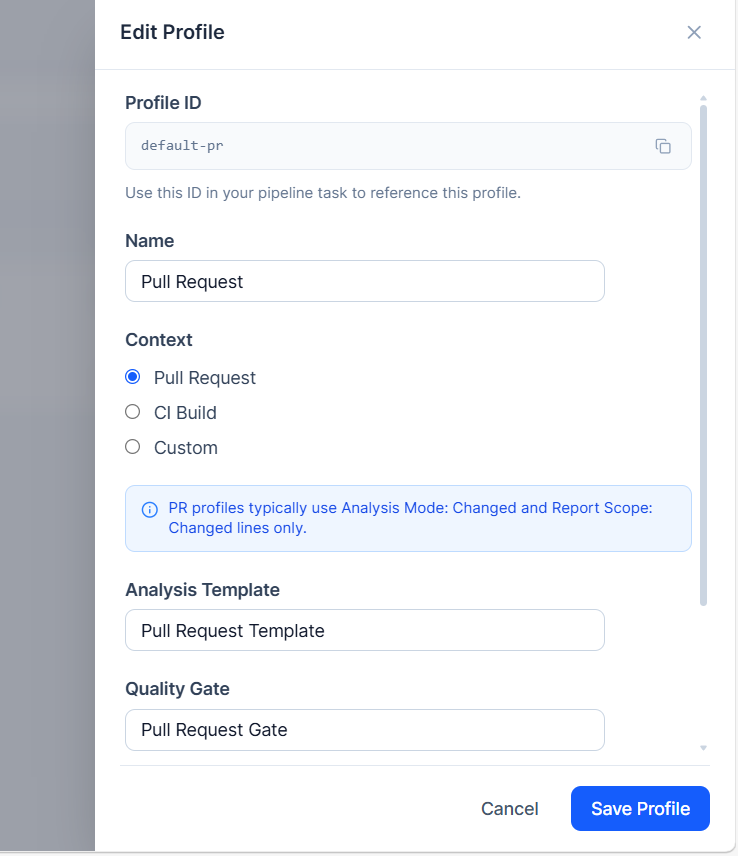
Section titled “Profiles”A profile combines an analysis template and a quality gate into a named configuration that can be applied to a pipeline context.
Profiles make it easier to define different behavior for different workflows. For example:
| Profile | Context | Suggested analysis mode | Suggested report scope |
|---|---|---|---|
| Pull Request | Pull Request | Changed files | Changed lines only |
| Continuous Integration | CI Build | Full | All issues in analyzed files |
| Release Validation | Custom | Full | All issues in analyzed files |
Profiles List
Section titled “Profiles List”The Profiles page shows configured profiles with:
| Column | Description |
|---|---|
| Name | Human-readable profile name. |
| Context | Pull Request, CI Build, or Custom. |
| Analysis Template | Template assigned to the profile. |
| Quality Gate | Quality gate assigned to the profile. |
Profile Fields
Section titled “Profile Fields”| Field | Description |
|---|---|
| Profile ID | Stable generated identifier used by pipeline task configuration. |
| Name | Display name shown in settings and reports. |
| Context | Defines when the profile applies. |
| Analysis Template | Rule template used by the profile. |
| Quality Gate | Quality gate used by the profile. |
| Description | Optional notes for administrators. |
Creating a Profile
Section titled “Creating a Profile”- Open SQL Enlight > Settings > Profiles.
- Click New Profile.
- Enter a name.
- Select the profile context.
- Select an analysis template.
- Select a quality gate.
- Add an optional description.
- Save the profile.
Editing or Deleting a Profile
Section titled “Editing or Deleting a Profile”Open an existing profile to modify it. Use the delete action to remove a profile. If the profile is referenced by another configuration or task, show a warning before deletion.
Analysis Templates
Section titled “Analysis Templates”An analysis template defines which SQL analysis rules are active and how they are configured.
Template List
Section titled “Template List”The Analysis Templates page shows:
| Column | Description |
|---|---|
| Name | Template name. |
| Rules | Number of rules included in the template. |
| Used by | Profiles that use the template. |

Creating or Editing a Template
Section titled “Creating or Editing a Template”- Open SQL Enlight > Settings > Analysis Templates.
- Click New Template, or select an existing template.
- Enter a name and optional description.
- Save the template.
- Open the rules editor to configure rules.
Rules Editor
Section titled “Rules Editor”The rules editor allows administrators to:
- Search rules by ID, name, or description.
- Filter by category.
- Filter by severity.
- Filter by rule kind.
- Show all, enabled only, or disabled only rules.
- Enable or disable individual rules.
- Bulk-toggle visible rules.
- Edit rule-specific settings where supported.
- Import and export template XML.

Importing and Exporting Templates
Section titled “Importing and Exporting Templates”| Action | Description |
|---|---|
| Import XML | Replaces the current template rules with the selected XML template file. |
| Export XML | Downloads the current template for backup, sharing, or offline editing. |
Use import/export to move templates between projects or apply templates received from SQL Enlight support.
Quality Gates
Section titled “Quality Gates”A quality gate defines whether the analysis result is acceptable. It consists of metrics, policies, and optional category weights.
Quality Gate List
Section titled “Quality Gate List”The Quality Gates page shows:
| Column | Description |
|---|---|
| Name | Quality gate name. |
| Policies | Number of policies configured in the gate. |
| Metrics | Number of metrics configured in the gate. |
| Used by | Profiles that reference this quality gate. |

Metrics
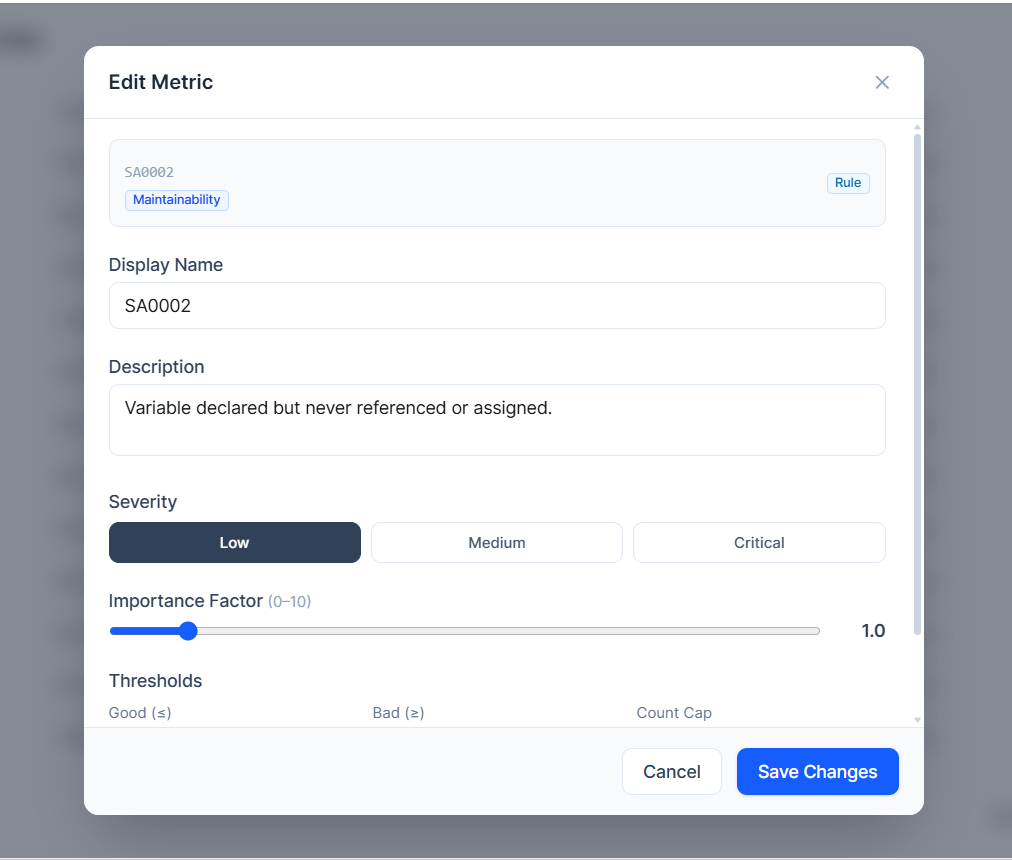
Section titled “Metrics”Metrics are the measurements evaluated by the gate. A metric can consider rule categories, severity, rule kind, importance, and thresholds.
| Metric field | Description |
|---|---|
| ID | Metric identifier. |
| Description | What the metric measures. |
| Categories | Rule categories included in the metric. |
| Severity | Severity level considered by the metric. |
| Kind | Rule kind filter. |
| Importance | Numeric weight used by scoring logic. |
| Thresholds | Good, bad, and cap values. |
Policies
Section titled “Policies”A policy groups one or more metrics and applies warning and failure thresholds.
| Policy field | Description |
|---|---|
| Name | Policy name. |
| Description | What standard the policy enforces. |
| Metrics | Metrics included in the policy. |
| Mode | Whether any or all metrics must breach the threshold. |
| Aggregation | How metric values are combined. |
| Warn at or above | Value that causes a warning. |
| Fail at or above | Value that causes failure. |
Category Weights
Section titled “Category Weights”Category weights control how strongly each issue category contributes to a composite score.
- Weight
0excludes the category from the score. - Higher weights make the category more important.
- Use this to emphasize categories such as security, correctness, or performance.
Importing and Exporting Quality Gates
Section titled “Importing and Exporting Quality Gates”| Action | Description |
|---|---|
| Import JSON | Loads a quality gate configuration from JSON. |
| Export JSON | Downloads the current quality gate as JSON. |
Shared Settings
Section titled “Shared Settings”Shared settings apply across the project and provide defaults for pipeline runs.

Analysis Settings
Section titled “Analysis Settings”File Patterns
Section titled “File Patterns”| Setting | Description |
|---|---|
| Include files | Regular expression used to include SQL files. Leave empty to include all .sql files. |
| Exclude files | Regular expression used to exclude files after include filtering. |
Examples:
src/db/.*\.sqlmigrations/.*Rule Overrides
Section titled “Rule Overrides”| Setting | Description |
|---|---|
| Include rules | Comma-separated list of rule IDs or groups to include. |
| Exclude rules | Comma-separated list of rule IDs or groups to skip. |
Rule overrides are applied after the active template settings.
Analysis Mode
Section titled “Analysis Mode”| Option | Description |
|---|---|
| Auto | Automatically selects a mode based on build context. |
| Full | Analyzes all matching SQL files. |
| Changed files | Analyzes only changed SQL files. |
Report Scope
Section titled “Report Scope”| Option | Description |
|---|---|
| All issues in analyzed files | Includes every active issue found in analyzed files. |
| Changed lines only | Includes only issues on changed lines. |
Fail Condition
Section titled “Fail Condition”| Option | Description |
|---|---|
| Never | Do not fail the task because of analysis issues. |
| Quality gate fail | Fail only when the quality gate fails. |
| Quality gate warn or fail | Fail when the quality gate warns or fails. |
| Any issue | Fail when any issue is found. |
Ignore Syntax Errors
Section titled “Ignore Syntax Errors”When enabled, SQL syntax parsing errors are excluded from the reported results. Use this for generated scripts, incomplete migration fragments, or code that uses unsupported syntax.
Pull Request Settings
Section titled “Pull Request Settings”| Setting | Description |
|---|---|
| Publish PR status | Publishes a status check to the pull request. |
| Publish summary comment | Publishes a top-level PR comment with the analysis summary. |
| Publish inline comments | Creates inline comment threads for issues mapped to changed lines. |
| Minimum severity | Minimum issue severity for inline comments: High, Medium, or Low. |
| Maximum threads per run | Limits inline comment volume. |
| Auto-resolve fixed issue threads | Resolves SQL Enlight inline threads when the issue disappears from a later run. |

Report Settings
Section titled “Report Settings”Report settings control comparison with a baseline build.
| Setting | Description |
|---|---|
| Automatically compare with previous eligible build | Enables automatic baseline comparison. |
| Baseline strategy | Selects the baseline selection method. |
| Same branch only | Requires the baseline to come from the same branch. |
| Same pipeline definition only | Requires the baseline to come from the same pipeline definition. |
| Manual build ID | Uses a specific build as the baseline. |
Use report comparison to identify new issues introduced by a build and issues fixed since the baseline.
Pull Request Integration
Section titled “Pull Request Integration”Pull request integration is available when the task runs in a pull request build.
PR Status Check
Section titled “PR Status Check”The PR status check summarizes the SQL Enlight result directly on the pull request. It gives reviewers immediate visibility before merging.
Typical status outcomes:
| Outcome | Meaning |
|---|---|
| Passed | Analysis completed and the configured quality criteria passed. |
| Warning | Quality gate produced a warning, or the configured policy indicates a warning state. |
| Failed | The configured fail condition was met. |
PR Summary Comment
Section titled “PR Summary Comment”The summary comment provides a top-level overview, such as:
- Analysis result.
- Quality gate result.
- Total issue counts.
- Important findings.
- Link to the SQL Analysis build tab/report.

Inline Comments
Section titled “Inline Comments”Inline comments are created on changed lines where issues can be mapped to the PR diff. Each inline comment should help the reviewer understand the issue without leaving the code review.
A typical inline comment includes:
- Rule ID.
- Rule title or message.
- Severity.
- Description or recommendation.
- File and line context.

Inline Comment Noise Control
Section titled “Inline Comment Noise Control”To avoid flooding large pull requests:
- Set Minimum severity to
HighorMedium. - Set Max inline threads to a reasonable number, such as
20. - Use Changed lines only report scope for PR profiles.
- Use Auto-resolve fixed issue threads so old comments are resolved when the issue is fixed.
Required Token Configuration
Section titled “Required Token Configuration”For PR publishing, expose the Azure DevOps system access token:
steps:- task: sqlEnlightAnalyze@1 displayName: 'SQL Enlight Code Analysis' env: SYSTEM_ACCESSTOKEN: $(System.AccessToken)Also ensure the build service identity has the required pull request permissions to publish statuses and comments.
Reports and Build Results
Section titled “Reports and Build Results”Build Log
Section titled “Build Log”The build log shows:
- Effective analysis flow.
- Analyzer execution.
- Published artifact information.
- PR decoration outcome.
- Final task status.
SQL Analysis Build Tab
Section titled “SQL Analysis Build Tab”The SQL Analysis build tab displays the structured SQL Enlight report for the selected build.
The report should help users review:
- Summary statistics.
- Quality gate result.
- Issue list.
- Affected files.
- Rule details.
- Severity distribution.
- New and fixed issues when comparison is enabled.
Project-Level Analysis Report Hub
Section titled “Project-Level Analysis Report Hub”The Analysis Report project hub provides a project-level entry point for viewing SQL Enlight reports. It can be used to find and review analysis results outside an individual build summary.
Published Artifact
Section titled “Published Artifact”The task publishes the sql-enlight-report artifact. The build tab and report hub use this artifact to load report data.
Expected report file:
SqlEnlight_AnalysisReport.jsonReport Comparison and Baselines
Section titled “Report Comparison and Baselines”Report comparison highlights changes between the current build and a baseline build.
Automatic Comparison
Section titled “Automatic Comparison”When automatic comparison is enabled, SQL Enlight selects an eligible baseline build and compares the current result against it.
Baseline Strategies
Section titled “Baseline Strategies”| Strategy | Description |
|---|---|
| Previous successful build | Selects the most recent completed successful build that matches the configured filters. |
| Manual build ID | Uses a specific build as the baseline. |
Baseline Filters
Section titled “Baseline Filters”| Filter | Description |
|---|---|
| Same branch only | Baseline must be from the same branch. |
| Same pipeline definition only | Baseline must be from the same pipeline definition. |
Comparison Results
Section titled “Comparison Results”Comparison can be used to identify:
- New issues introduced by the current build.
- Existing issues still present.
- Issues fixed since the baseline.
- Quality gate changes between builds.
License Management
Section titled “License Management”The License settings tab manages SQL Enlight activation and licensed users.
License Status
Section titled “License Status”The license details panel shows:
| Item | Description |
|---|---|
| Status | Active or invalid based on the latest check. |
| Subscription expires | License expiration date. |
| Last checked | Most recent validation time. |
Licensed Users
Section titled “Licensed Users”Licensed users are Azure DevOps users assigned to license seats. Each user can be validated independently.
| Indicator | Meaning |
|---|---|
| No indicator | User has not been checked yet. |
| License valid | User is confirmed as licensed. |
| License check failed | The user could not be validated or is not licensed. |

License Data
Section titled “License Data”The License Data section stores the raw license data returned by online activation or support-assisted manual activation.
Administrators can:
- Copy the current license data.
- Paste updated license data.
- Check the license after updating data.
- Reset license information before switching to another license.
License Check During PR Decoration
Section titled “License Check During PR Decoration”For pull request decoration, the task can check whether the pull request principal has a valid SQL Enlight license. If the license check fails, PR decoration is skipped and the analysis still publishes its report artifact.
License Activation Workflows
Section titled “License Activation Workflows”SQL Enlight supports online and manual activation.
Online Activation
Section titled “Online Activation”Use online activation when the browser can reach the SQL Enlight licensing service.
- Open SQL Enlight > Settings > License.
- Click Activate License.
- Enter the license key.
- Enter a contact email.
- Add/select licensed Azure DevOps users.
- Generate activation data.
- Click Activate Online.
- Verify the license status.

Manual Activation by Support Email
Section titled “Manual Activation by Support Email”Use manual activation for restricted networks or when online activation is not available.
- Open SQL Enlight > Settings > License.
- Click Activate License.
- Enter the license key and contact email.
- Add/select licensed users.
- Generate activation data.
- Click Send Email to Support.
- Send the generated activation request to SQL Enlight support.
- Receive the license data file from support.
- Paste the license data into the License Data section.
- Click Check License.

Manual License Data Entry
Section titled “Manual License Data Entry”If you already have license data:
- Open the License tab.
- Click Manual Enter License Data.
- Paste the license data.
- Click Check License.
Trial License Workflow
Section titled “Trial License Workflow”A trial license gives access to SQL Enlight Code Quality features for evaluation.
The trial page describes:
- No credit card required.
- Full feature access.
- 30-day trial period.
- Setup support included.
Requesting a Trial
Section titled “Requesting a Trial”- Open the SQL Enlight Azure DevOps trial page.
- Enter your name, work email, company/organization, expected number of users, and optional notes.
- Submit the request.
- Wait for the trial license key by email.
- Activate the license in the Azure DevOps extension settings.
Trial Activation
Section titled “Trial Activation”Trial activation follows the same activation workflow as paid licenses, except that the wizard may hide or pre-fill trial-specific license key details depending on the activation flow.
Recommended Workflows
Section titled “Recommended Workflows”Recommended Pull Request Workflow
Section titled “Recommended Pull Request Workflow”Use this workflow to focus on new SQL issues introduced by a PR.
- Create a Pull Request profile.
- Use a PR-focused analysis template.
- Use a quality gate suitable for incremental checks.
- Set analysis mode to Changed files or Auto.
- Set report scope to Changed lines only.
- Enable Publish PR status.
- Enable Publish summary comment.
- Enable inline comments only for high or medium severity issues.
- Set a maximum inline thread count.
- Enable auto-resolve for fixed issue threads.
Suggested YAML:
steps:- task: sqlEnlightAnalyze@1 displayName: 'SQL Enlight PR Analysis' inputs: ProfileIdOrName: 'Pull Request' env: SYSTEM_ACCESSTOKEN: $(System.AccessToken)Recommended CI Workflow
Section titled “Recommended CI Workflow”Use this workflow to track project-wide SQL quality.
- Create a CI Build profile.
- Use the standard or strict analysis template.
- Use a quality gate that reflects your team’s agreed quality threshold.
- Set analysis mode to Full.
- Set report scope to All issues in analyzed files.
- Enable automatic comparison with the previous successful build.
- Fail on quality gate failure or quality gate warning/failure, depending on team maturity.
Suggested YAML:
steps:- task: sqlEnlightAnalyze@1 displayName: 'SQL Enlight CI Analysis' inputs: ProfileIdOrName: 'CI Build'Legacy Codebase Adoption Workflow
Section titled “Legacy Codebase Adoption Workflow”Use this workflow when a project has many existing SQL issues and the team wants to avoid blocking all builds immediately.
- Start with Fail condition = Never or Quality gate fail with relaxed thresholds.
- Enable full reports and baseline comparison.
- Use PR analysis with Changed lines only to prevent new issues.
- Gradually tighten quality gate thresholds.
- Move from warning-only to failure when the team is ready.
Strict Quality Enforcement Workflow
Section titled “Strict Quality Enforcement Workflow”Use this workflow when SQL quality must block merges and releases.
- Use a strict rule template.
- Use a quality gate with clear failure thresholds.
- Set fail condition to Quality gate fail, Quality gate warn or fail, or Any issue.
- Enable PR status publishing.
- Configure branch policies to require the SQL Enlight PR status before merge.
Troubleshooting
Section titled “Troubleshooting”SQL Analysis Tab Does Not Show a Report
Section titled “SQL Analysis Tab Does Not Show a Report”Check:
- The build completed after the extension was installed.
- The task published the
sql-enlight-reportartifact. - The artifact contains
SqlEnlight_AnalysisReport.json. - The build tab is opened for the correct build.
- Browser refresh or reselecting the tab does not indicate an initialization timing issue.
No Changed SQL Files Found
Section titled “No Changed SQL Files Found”In changed-files mode, the task exits successfully if no changed SQL files are found. This is expected for PRs or builds without SQL changes.
Check:
- The pull request target branch is available.
- The repository checkout contains enough Git history to compute a merge base.
- SQL files match the include/exclude patterns.
PR Comments or Status Are Not Published
Section titled “PR Comments or Status Are Not Published”Check:
- The build is running for a pull request.
SYSTEM_ACCESSTOKENis exposed to the task.- The build service identity has permission to publish PR statuses and comments.
- The pull request settings are enabled in shared settings or task overrides.
- The pull request principal has a valid SQL Enlight license if license gating is enabled.
Inline Comments Are Missing
Section titled “Inline Comments Are Missing”Check:
- Inline comments are enabled.
- Issue severity meets the configured minimum severity.
- The issue can be mapped to a changed line in the PR diff.
- The max thread limit has not been reached.
- Report scope does not exclude the issue.
Task Fails with Rule Violations
Section titled “Task Fails with Rule Violations”This is expected when Fail condition is set to Any issue and one or more issues are reported.
To change this behavior, set fail condition to:
- Never to never fail due to analysis issues.
- Quality gate fail to fail only when the quality gate fails.
- Quality gate warn or fail to fail on warning or failure.
Task Fails with Quality Gate Failures
Section titled “Task Fails with Quality Gate Failures”Review the SQL Analysis tab and inspect the quality gate section. Adjust either the SQL code, rule configuration, or quality gate thresholds as appropriate.
License Check Fails
Section titled “License Check Fails”Check:
- License data is present.
- The license is active and not expired.
- The user is included in the licensed users list.
- The correct Azure DevOps identity is selected for the user.
- Online license check endpoint is reachable, or use manual activation.
Analysis Context or Connection String Problems
Section titled “Analysis Context or Connection String Problems”Check:
- The analysis context file path exists on the build agent.
- The SQL Server connection string is valid.
- The build agent can reach the database server.
- Credentials are provided securely using pipeline secrets.
Privacy and Data Handling
Section titled “Privacy and Data Handling”The extension website content states that SQL Enlight Code Quality does not collect data or send data outside the Azure DevOps project space. License activation and license checks may require communication with SQL Enlight licensing services depending on the activation mode.
For environments with restricted network access, use the manual activation workflow by email.
Appendix A — Task Input Reference
Section titled “Appendix A — Task Input Reference”The following settings are available in the sqlEnlightAnalyze@1 task.
| Input | Label | Type | Default | Description |
|---|---|---|---|---|
ProfileIdOrName |
Profile Id Or Name (optional) | string | empty | Selects a profile by ID or name. If empty, the task selects a profile based on build context. |
OverrideFilesPattern |
Override default file patterns | boolean | false |
Enables task-level include/exclude file pattern overrides. |
IncludeFilesPattern |
Include files pattern | string | empty | Regex used to include .sql files when file pattern override is enabled. |
ExcludeFilesPattern |
Exclude files pattern | string | empty | Regex used to exclude files after include filtering when file pattern override is enabled. |
AnalysisContext |
Analysis context file | filePath | empty | Optional SQL Enlight analysis context XML file. |
ConnectionString |
Connection string | string | empty | Optional SQL Server connection string used to load database metadata. |
CustomProperties |
Custom properties | multiLine | empty | Optional key-value properties included in the report. |
OverrideRules |
Override default rules filters | boolean | false |
Enables task-level include/exclude rule overrides. |
IncludeRules |
Include rules | string | empty | Comma-separated rule IDs or groups to include when rule override is enabled. |
ExcludeRules |
Exclude rules | string | empty | Comma-separated rule IDs or groups to exclude when rule override is enabled. |
TemplateFile |
Analysis template file | filePath | empty | Optional SQL Enlight analysis template file. Uses shared setting if empty. |
QualityGateFile |
Quality gate file | filePath | empty | Optional quality gate file. Uses shared setting if empty. |
FailOn |
Fail condition | pickList | inherit |
Controls task failure behavior. Options: inherit, none, qualityGateFail, qualityGateFailOrWarn, anyIssue. |
AnalysisMode |
Analysis mode | pickList | inherit |
Controls file selection. Options: inherit, auto, full, changed. |
ReportScope |
Report scope | pickList | inherit |
Controls included issues. Options: inherit, allIssuesInAnalyzedFiles, changedLinesOnly. |
IgnoreSyntaxErrors |
Ignore syntax errors | pickList | inherit |
Controls whether syntax errors are excluded from reported results. |
PublishStatus |
Publish PR status | pickList | inherit |
Enables or disables PR status publishing. |
PublishSummaryComment |
Publish summary comment | pickList | inherit |
Enables or disables PR summary comment publishing. |
PublishInlineThreads |
Publish inline comments | pickList | inherit |
Enables or disables inline issue comments on changed lines. |
InlineSeverityMin |
Minimum severity | pickList | inherit |
Minimum severity for inline comments: High, Medium, or Low. |
MaxThreads |
Max inline threads | string | empty | Maximum inline comment threads per run. Empty inherits shared setting. |
AutoResolveFixedIssueInlineThreads |
Auto-resolve fixed PR issue threads | pickList | inherit |
Automatically resolves SQL Enlight inline threads when issues are fixed. |