Analysis Rule Designer
Introduction
Section titled “Introduction”This topic describes the Analysis Rule Designercomponents.
The Analysis Rule Designer is the recommended way for creating analysis rules for SQL Enlight. The designer has five modes for each of the supported analysis rule types.
Properties
Section titled “Properties”The main rule properties can be set on the Propertiestab:
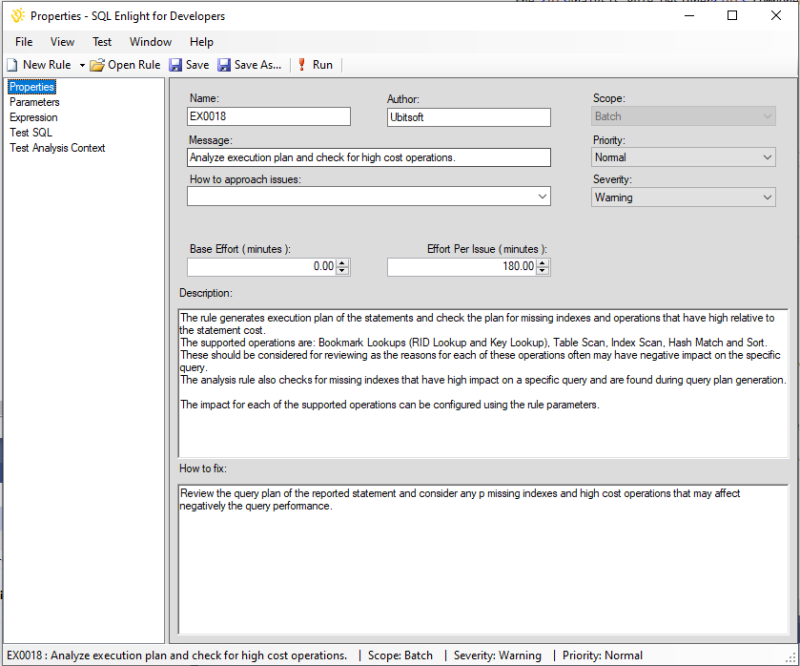
See Analysis Rule Properties for the available properties.
Parameters
Section titled “Parameters”The analysis rule parameters can be set on the Parameterstab.
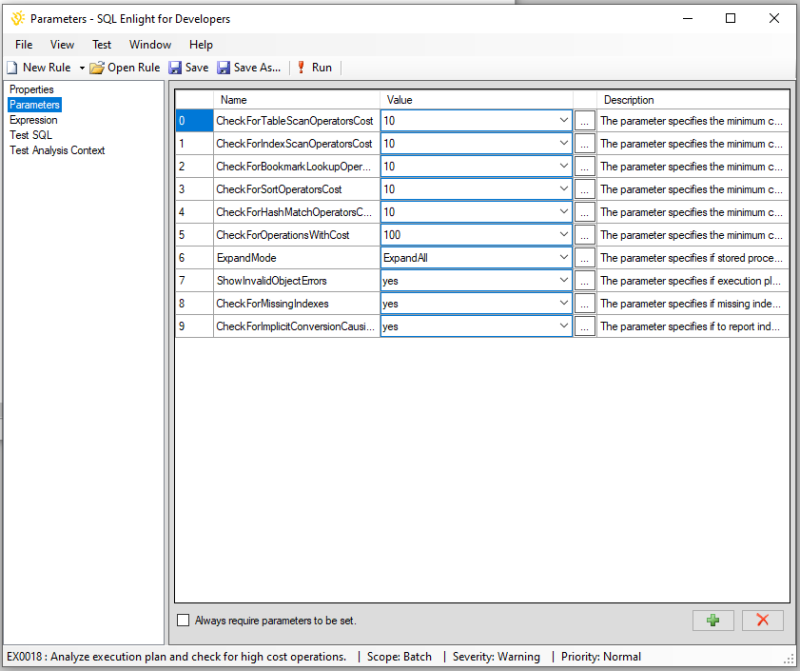
A rule parameter can have a list of options from which a default value can be selected that are to be used during analysis.
The values are stored as string literals and in the case of the advanced rules, the rule is responsible to convert the value to the desired type if necessary. When the rule is a simple analysis rule, parameters that have ‘yes’ and ‘no’ options are converted automatically to boolean values. All the other parameters are treated as string literals and have to be converted in the rule expression if necessary.
See Analysis Rule Parameters for parameters usage.
Test SQL
Section titled “Test SQL”The code analysis rules have a test T-SQL script, which can be used to test and ensure that the rule gives expected results.
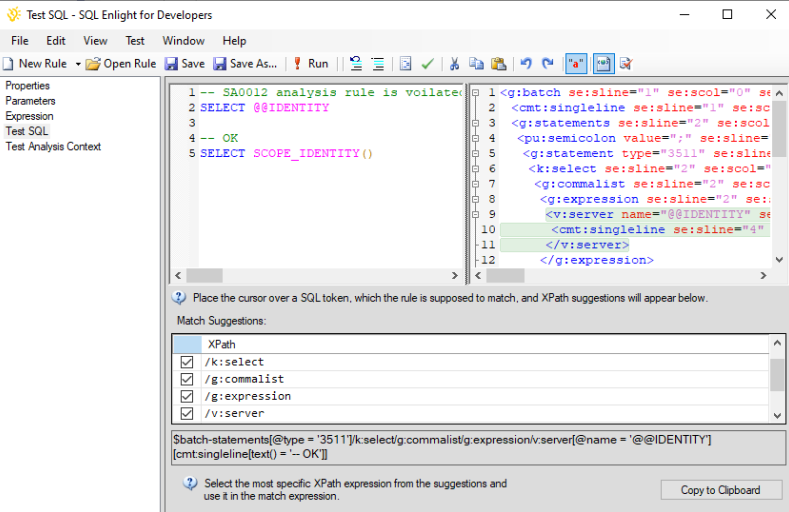
As match suggestions are available for the Test SQL script, an XPath suggestion will appear when the cursor is placed over a SQL token.
An XML view is also available for the Test SQL script and can be toggled using the Syntax Tree toolbar button.
You can also use the XML view to examine the script’s syntax tree and test XPath expressions.
The test script is saved with the rule and is loaded when the rule is loaded in the rule designer.
Analysis Context
Section titled “Analysis Context”The Test Analysis Contexttab contains the context XML which is used for testing the analysis rule.
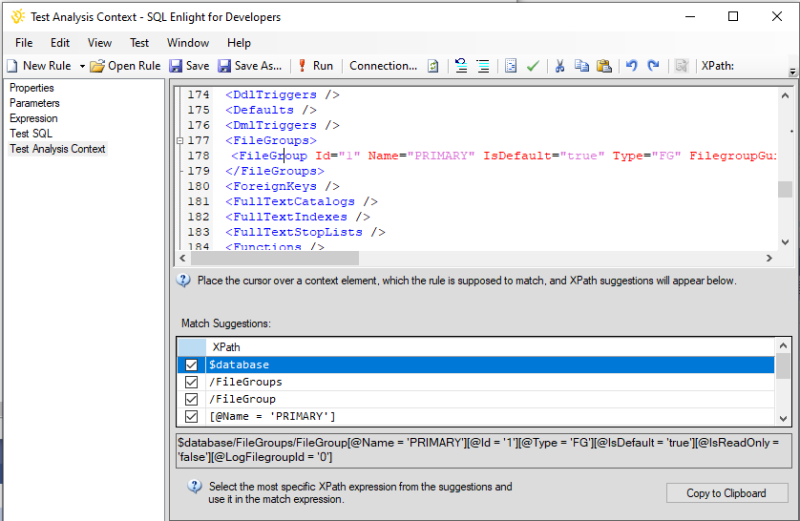
The toolbar also contains an XPath test field which can be used to test XPath expressions against the loaded context and see the results in the Errors List.
The SQL connection to the default Analysis Context can be set from the SQL Enlight -> Options -> Analysis -> Options -> Contexttab:
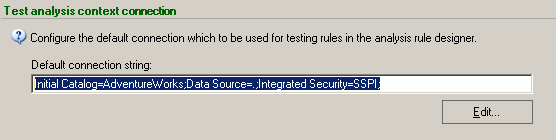
This connection will be used by default in the Analysis Rule Designerto load the context when testing the rule.
The setting can be overridden and the connection can be changed in the designer with the Connection…button located on the Test Analysis Contexttab toolbar.
Analysis context can be accessed inside the rule expression using the $context variable and the current context database can be accessed with the $database > variable.
Example:
<xsl:value-of select="$context/Database[1]/Tables/Table[1]/@Name"/> <xsl:value-of select="$database/Tables/Table[1]/@Name"/>Refer to the Analysis Context topic to learn more.
Rule expression
Section titled “Rule expression”Depending on the type of rule, there can be two kinds of rule expressions - Simple and Advanced.
Refer to topic to learn more about the analysis rule expression.
Simple rule expression
Section titled “Simple rule expression”Match expressions can be defined for one or more elements of the parsed SQL code syntax tree or the database context.

The match expressions of Simple Analysis rules can be added, deleted, and edited using the context menu.
See Simple Rule Expression for more information about the supported syntax.
Advanced rule expression
Section titled “Advanced rule expression”The XSLT expression editor can be used to enter and edit Advanced Analysis Rule’s XSLT expression.

Simple rule fix expression
Section titled “Simple rule fix expression”
The Simple Analysis Rules have a tab for providing expressions for their automatic Fix properties.
The Fix properties can be any string literal, but may also contain interpolated expressions enclosed in backticks.
When a Fix property is not checked or empty, it is not skipped when the Fix text is combined.
See Simple Rule Automatic Fix for details.
Automatic fix results
Section titled “Automatic fix results”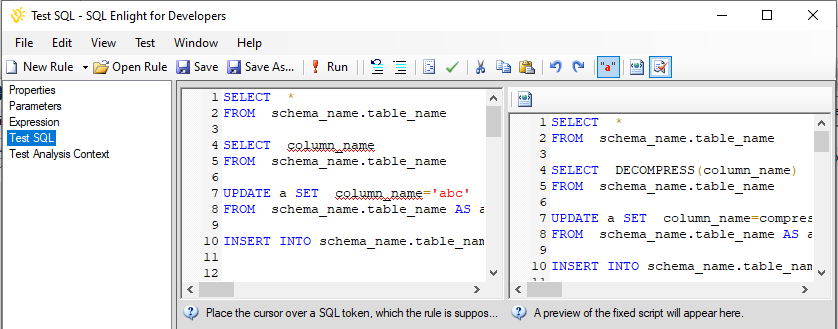
When a rule that has a fix defined is run in the analysis rule designer, the fixed SQL code in case of a code analysis rule is shown in a panel beside the Test SQL code.
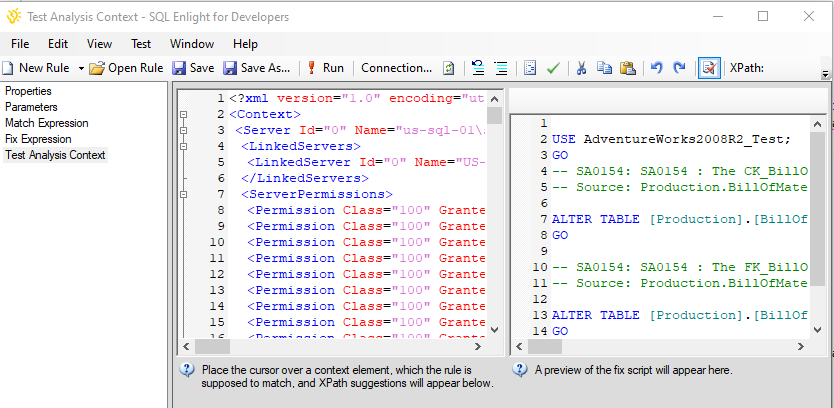
When the rule is a database analysis rule, the change script that is generated by the fix appears in a panel beside the Analysis Context.
Match Suggestions
Section titled “Match Suggestions”The Match Suggestions component appears on the Test SQLand Test Analysis Contexttabs and provides a fast way to create XPath selector expressions for context and source code elements that are to be used in the analysis rule match expression.
When a SQL token or Analysis Context XML node is pointed by the editor’s cursor, a match suggestion is generated.
The match suggestion contains the XML path to the target XML node as well as significant attributes of the ancestor and target nodes.
Match suggestions for a source code analysis rule
Section titled “Match suggestions for a source code analysis rule”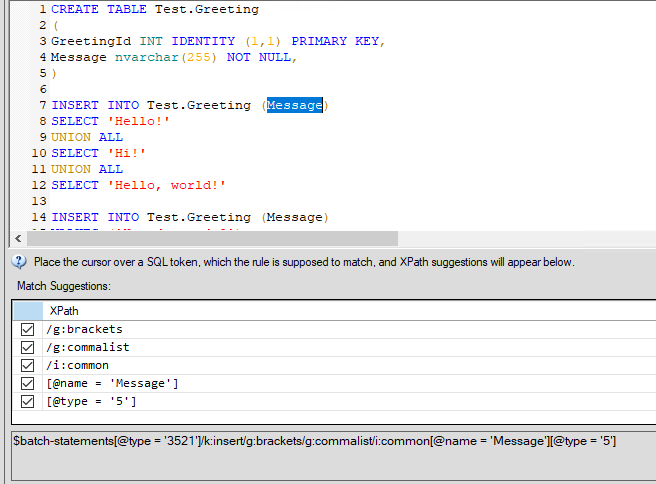
The match suggestion XPath for a source code token is generated relative to containing SQL statement:
$batch-statement[@type="statement type id"]/...Match suggestions for a database context analysis rule
Section titled “Match suggestions for a database context analysis rule”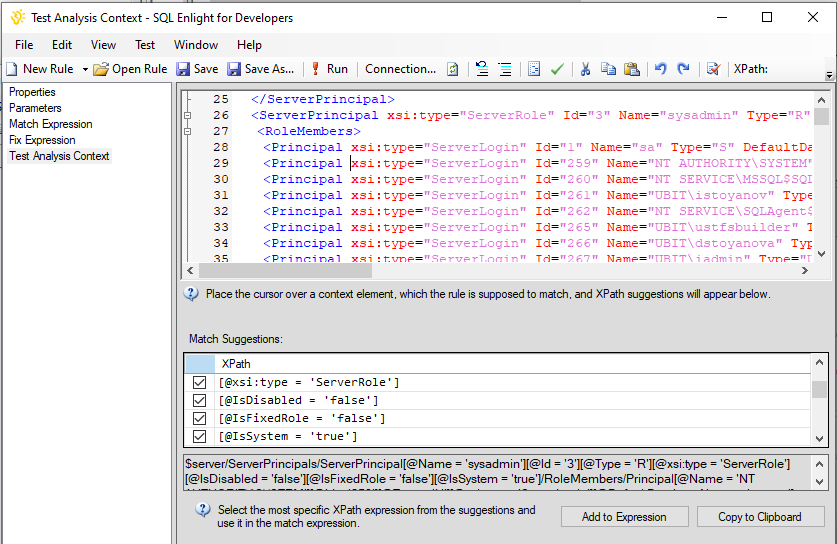
The match suggestion XPath for a database or server object is generated relative to the current database or server ( $database or $server ).
Snippets and Functions
Section titled “Snippets and Functions”The Snippets and Functions component provides a categorized list of extension functions, variables, and some XSLT snippets that are available for the analysis rules.

The component is available to the Expressiontabs of the Advanced rules as well as on the Match Expressionand Fix Expressiontabs of the Simple rules.
Error List
Section titled “Error List”Any error messages found during the validation will be displayed in the Error Listand the error will be marked inside the analysis rule expression.
When test-running the analysis rule, all issues that are found will be displayed in the Error List.
For code analysis issues, the issues will be marked inside the Test SQL editor while for database context analysis rules the issues will be marked inside the Test Analysis Context.