Test Explorer
Introduction
Section titled “Introduction”The Test Exploreris a tool window available in Visual Studioand SQL Server Management Studiothat provides a unified interface for discovering, running, and managing tSQLtunit tests across one or more SQL Server databases.
About tSQLt
Section titled “About tSQLt”tSQLtis an open-source unit testing framework for SQL Server. It enables developers to write and execute unit tests for database objects entirely in T-SQL. Tests are organized into test classes, and each test is implemented as a stored procedure. The framework provides assertions, mocking capabilities, and test isolation through transaction rollback.
The Test Explorer works with databases that already have the tSQLt framework installed. Currently, the Test Explorer does not provide a feature to install the tSQLt framework automatically; users must install it themselves. We may add such a feature in future updates.
Downloading and installing tSQLt
Section titled “Downloading and installing tSQLt”To download and install tSQLt in your database, do the following:
-
Visit the official tSQLt website at https://tsqlt.org and download the latest release package.
-
Extract the downloaded archive to a local folder.
-
Open SQL Server Management Studioor Visual Studioand connect to the SQL Server instance that hosts the target database.
-
Open and execute the tSQLt.class.sqlscript against the target database. This creates the tSQLt schema, CLR objects, and helper stored procedures required by the framework.
⚡ ** note: ** The target database must have CLR integration enabled. If it is not enabled, run the following commands in the masterdatabase before installing tSQLt:
sp_configure 'clr enabled', 1; RECONFIGURE;Additionally, the database may need to be set to a trustworthy state or have an asymmetric key with an unsafe assembly permission. Refer to the installation instructions included in the tSQLt download for the most up-to-date details.
- After installation, use the Checkcommand in the Test Explorer to verify that the framework is detected.
Test Explorer overview
Section titled “Test Explorer overview”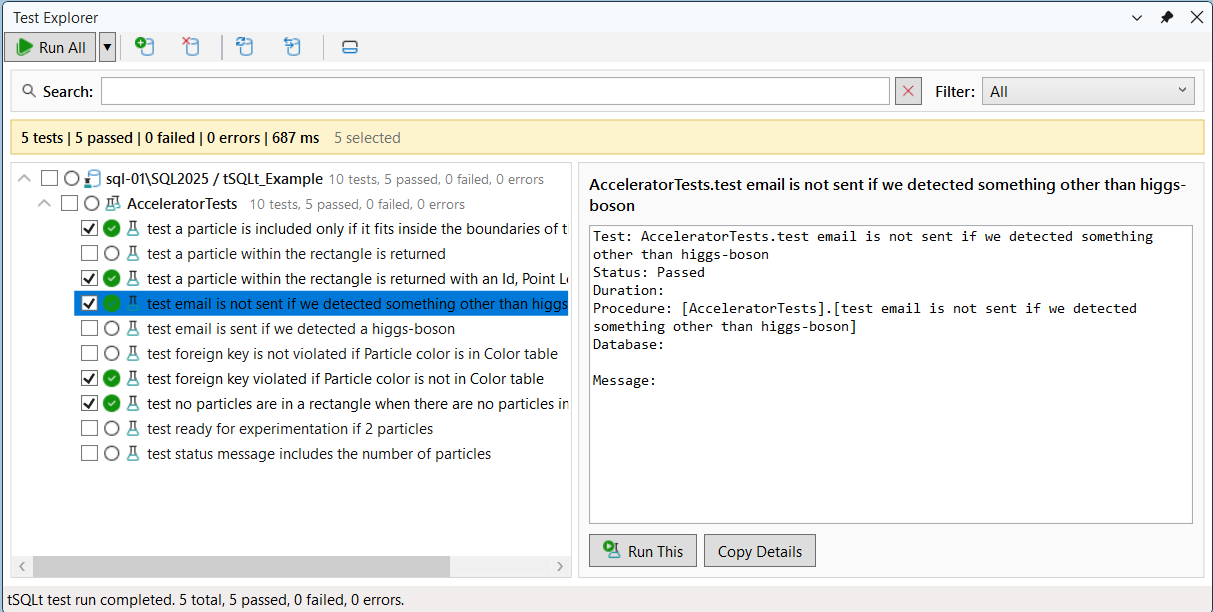
The Test Explorer window is divided into the following areas:
-
Toolbar– Contains buttons for running tests, managing registered databases, refreshing the test list, and checking the tSQLt status.
-
Search and filter bar– Lets you narrow down the displayed tests by text search and by last-run outcome.
-
Summary bar– Shows a brief summary of the current operation or the last test run, along with multi-selection information.
-
Test tree– Displays a hierarchical view of registered databases, test classes, and individual test cases.
-
Details panel– Shows detailed information about the currently selected test node, including the result message and test output.
-
Status bar– Displays the current status text at the bottom of the window.
Toolbar commands
Section titled “Toolbar commands”The toolbar provides quick access to the most common Test Explorer operations.
Running tests
Section titled “Running tests”-
Run All– Runs every discovered tSQLt test in the active database.
-
Run Selected– Runs the tests that are currently selected in the tree or that have their checkbox checked.
-
Run Failed– Runs only the tests that failed or errored during the most recent test run.
-
Stop– Cancels the currently executing test run. The button is only visible while a test run is in progress.
⚡ ** note: ** Run Selectedand Run Failedare available from the drop-down menu attached to the Run Allbutton. Click the small arrow on the right side of the button to open the drop-down.
Managing registered databases
Section titled “Managing registered databases”-
Add Database…– Opens a dialog to register a new SQL Server database as a tSQLt test source. After adding the database, the Test Explorer attempts to discover tSQLt tests in it automatically.
-
Remove Database– Unregisters the currently active database from the Test Explorer. The database itself is not modified; only the Test Explorer reference is removed.
⚡ ** note: ** When the active database context changes in the editor (for example, when you connect to a different database in Object Explorer), the Test Explorer automatically checks whether the newly active database contains a tSQLt installation. If it does, the database is registered automatically and becomes the active test source.
Refreshing and checking tSQLt status
Section titled “Refreshing and checking tSQLt status”-
Refresh– Re-discovers tSQLt tests in the active database. Use this command after adding, renaming, or removing test stored procedures in the database to update the tree view.
-
Check– Queries the active database to determine whether the tSQLt framework is installed and reports the number of test cases found. The result is displayed in the status bar.
Details panel layout
Section titled “Details panel layout”The Toggle Details Panel Layoutbutton switches the position of the details panel between docked to the right of the test tree and docked at the bottom. The divider between the test tree and the details panel can be dragged to adjust the relative size of each area.
Searching and filtering tests
Section titled “Searching and filtering tests”As the number of tests grows, the Test Explorer provides two mechanisms to help locate specific tests:
Text search
Section titled “Text search”Type text in the Searchbox to filter the tree by matching the test display name, full test name, procedure name, database name, or server name. The search is case-insensitive and matches any substring. Click the clear button to the right of the search box to reset the search text.
Outcome filter
Section titled “Outcome filter”The Filterdrop-down lets you show only tests that match a specific outcome from the last test run:
-
All– Shows all tests regardless of outcome.
-
Failed– Shows only tests that failed.
-
Failed or Errored– Shows tests that failed or encountered an error.
-
Passed– Shows only tests that passed.
-
Not Run– Shows tests that have not been executed yet.
The search text and the outcome filter are applied in combination. Only tests that satisfy both conditions are displayed.
Test tree
Section titled “Test tree”The test tree presents a hierarchical view of all registered test databases and their contents:
-
Database nodesrepresent a registered SQL Server database that contains tSQLt tests. Each database node aggregates the results of all test classes beneath it.
-
Test class nodescorrespond to tSQLt schema (test classes). Each class node aggregates the results of all test cases within the class.
-
Test case nodescorrespond to individual test stored procedures. Each test case node shows the outcome of the last run (passed, failed, errored, not run, or running), the test name, and a summary count.
Each node displays a status icon indicating its last outcome, along with a summary showing the number of passed, failed, errored, and not-run tests in that subtree. Parent nodes automatically recalculate their summaries whenever a child node’s outcome changes.
Multi-selection with checkboxes
Section titled “Multi-selection with checkboxes”Every node in the test tree has a checkbox on its left side. Check one or more nodes to include them in a Run Selected / Checkedexecution. You can check a database or test class node to include all of its child tests at once.
The summary bar displays the total number of checked nodes. Use the Clear Checked Nodescommand in the tree’s context menu to uncheck all nodes at once.
Context menu commands
Section titled “Context menu commands”Right-clicking a node in the test tree opens a context menu with commands tailored to the node type.
Run commands
Section titled “Run commands”-
Run This / Child Tests– Runs the selected test case, or all tests within the selected test class or database.
-
Run Selected / Checked– Runs all nodes that are currently selected or checked in the tree.
-
Run Failed– Runs only the tests that failed or errored in the last run.
Creating, editing, and deleting tests
Section titled “Creating, editing, and deleting tests”-
Create Test– Opens a dialog where you can specify a test class name and test name. The Test Explorer then generates and applies a new test stored procedure in the database. If the selected node is a test class, the class name is pre-filled.
-
Edit Test– Opens the stored procedure associated with the selected test case for editing in a new query window.
-
Delete Test– Removes the test stored procedure from the database and refreshes the test list for the affected database.
⚡ ** note: ** The Create Test, Edit Test, and Delete Testcommands operate on the database associated with the selected node.
Database commands
Section titled “Database commands”-
Add Database…– Registers a new test database.
-
Remove Database Connection– Unregisters the database associated with the selected node from the Test Explorer.
-
Refresh Tests– Re-discovers tests in the database associated with the selected node.
-
Check tSQLt Status– Verifies whether tSQLt is installed in the database associated with the selected node and reports the test count.
Utility commands
Section titled “Utility commands”-
Clear Checked Nodes– Unchecks all nodes in the test tree.
-
Copy Name– Copies the display name of the selected node to the clipboard.
Details panel
Section titled “Details panel”The details panel shows information about the currently selected test node. For a test case node, the panel displays:
-
The test name and class as a title.
-
The full result message produced by tSQLt, including any assertion failures or error text.
The panel provides two action buttons at the bottom:
-
Run This– Runs the currently displayed test case.
-
Copy Details– Copies the entire details text to the clipboard so it can be pasted into a bug report or shared with a colleague.
The details text is displayed in a monospace font and is read-only.
Running tests and viewing results
Section titled “Running tests and viewing results”When a test run starts, the status of every selected test changes to Runningand the status bar shows the progress. After the run completes, each test node is updated with its outcome:
-
Passed– The test completed successfully.
-
Failed– The test completed but an assertion failed.
-
Errored– The test encountered an unexpected error.
The status bar reports the total number of tests executed along with the counts of passed, failed, and errored tests. Parent nodes (test classes and databases) display an aggregate summary of their children.
If a test produces a result for a procedure that was not present in the tree (for example, because the tree has not been refreshed yet), the Test Explorer automatically adds a synthetic node for that test so the result is visible.
⚡ ** note: ** By default, the results from the previous test run are cleared before a new run begins. This behaviour can be configured in the Test Explorer options.
Automatic database discovery
Section titled “Automatic database discovery”When the Test Explorer is initialized, it discovers tests in all previously registered and enabled databases. The first registered database becomes the active test source.
If you switch to a different database context in the editor or Object Explorer, the Test Explorer checks whether that database contains a tSQLt installation. If tSQLt is found, the database is automatically registered and set as the active source. If tSQLt is not found, the database is not registered.
You can manually register additional databases at any time using the Add Database…command. Each registered database is persisted and restored the next time the Test Explorer is opened.