Manage Analysis Rules
Introduction
Section titled “Introduction”The topic describes the Analysis > Rulestab where the analysis rules and groups can be created and modified.
Create, Edit, or Delete Analysis Rule
Section titled “Create, Edit, or Delete Analysis Rule”The analysis rules which are selected here will be used as default rules when performing analysis.

The rule’s checked state controls whether the rule will be applied during analysis or not.
Create New Rule
Section titled “Create New Rule”To create a new analysis rule, do the following:
-
Choose a parent group
-
Select the group and right-click to open its context menu
-
Use the Newcommand and select the type of rule you want to create - Batch or Context Only rule
The Analysis Rule Designerwill be opened and you will be able to set rule properties, rule expression, rule parameters and test the rule.
See the How To: Create Analysis Rule with Rule Designer topic for more information.
Edit Rule
Section titled “Edit Rule”To edit an analysis rule, right-click the rule to open its context menu and use the Edit command to open the Analysis Rule Designer.
Delete Rule
Section titled “Delete Rule”To delete a given rule and all its instances, right-click the rule to open its context menu and use the Delete Allcommand.
Create, Edit, or Delete Analysis Group
Section titled “Create, Edit, or Delete Analysis Group”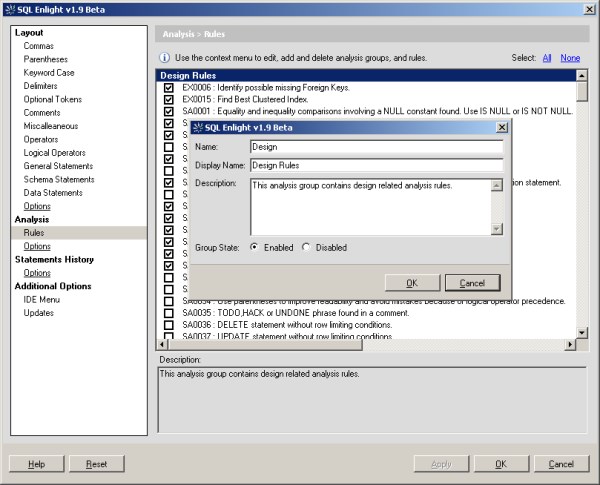
Create New Group
Section titled “Create New Group”To create a new analysis group, do the following:
-
Right-click a group or a rule to open its context menu and use the New -> Groupcommand
-
Fill in the required rule properties
-
Use the OKbutton to close the dialog and save the group
Edit Group
Section titled “Edit Group”To edit analysis group properties, right-click the rule to open its context menu and use the Editcommand.
⚡ ** note: ** All groups with Group Stateproperty set to Enabledwill appear disabled on the Analysis > Rulestab.
The disabled group will appear grayed and will be also excluded from the list of analysis groups which are the user can select from before analysis.
Delete Group
Section titled “Delete Group”To delete an analysis group, use the group’s Deletecontext menu command.
⚡ ** note: ** When an analysis group is deleted, all the rules which do not have other associated groups will be moved to the Orphaned Rules system group.
Add Existing Rule to A Group
Section titled “Add Existing Rule to A Group”To add an analysis rule to a group, right-click the target group and use the Add Existing Rulecontext menu command.
A rule selector dialog will open and you will be able to select rules which will be added to the current group.
⚡ ** note: ** An analysis rule can be associated with multiple groups, but when the state of one of the rule instances is changed, the state of the other instances will be also changed.
If a rule is not associated with a group, it will be placed in a system group named - Orphaned Rules.
Remove Rule from A Group
Section titled “Remove Rule from A Group”To remove an analysis rule from a specific group, select the rule under the group and use the Remove From Groupcontext menu command.
If this is the only left group to which the rule is associated, the rule will be placed in the Orphaned Rules system group.
Export/Import Rules
Section titled “Export/Import Rules”Analysis rule can be imported from a saved file or saved to a file. To export an analysis rule:
1.Select rule from the list of existing rules.
2.Use the Exporttoolbar button to save the current rule to file.
To import a previously exported rule, do the following:
1.Use the Importtoolbar button to load the stored analysis rule from a file and add it to the current template.
2.After the import, the new rule will be added to the Orphaned rules group.
⚡ ** note: ** For how to export all rules from the current template or import rules from a saved template, see Analysis Template Import/Export .
Switching Between Views
Section titled “Switching Between Views”The toolbar in the Analysis → Rulespage includes a toggle button that switches between Tree View and Grid View.
-
Tree View- a hierarchical, category-based rule browser.
-
Grid View- a high-density, editable table for bulk editing.
Tree View
Section titled “Tree View”Tree View displays analysis rules organized by logical categories such as Bugs, Code Style, and Performance. Each rule includes a checkbox allowing quick activation or deactivation.
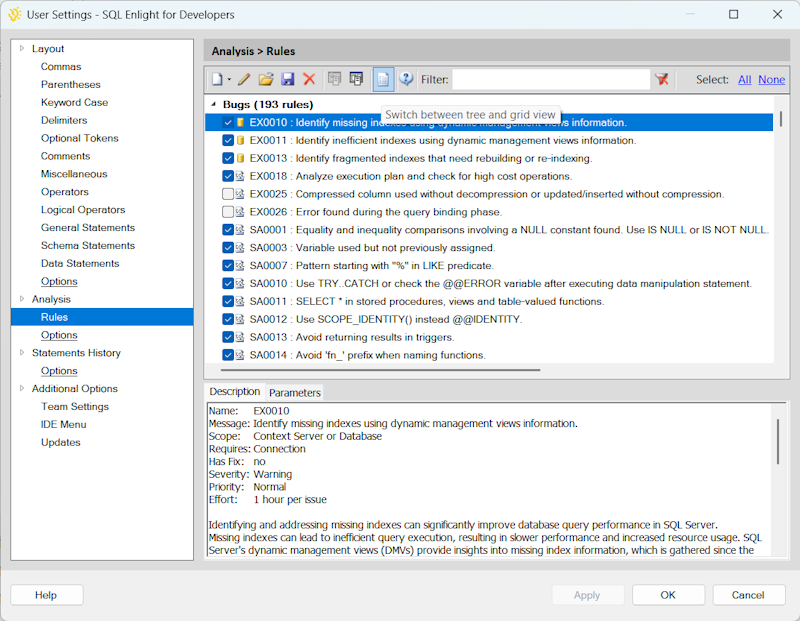
Key features include:
-
Category-based navigation
-
Rule activation via checkboxes
-
Double-click to edit a rule
-
Toolbar operations such as edit, delete, import, and export
-
Detailed rule description and parameters panel
Grid View
Section titled “Grid View”Grid View displays all analysis rules in a sortable, editable table ideal for reviewing, comparing, and modifying many rules at once.
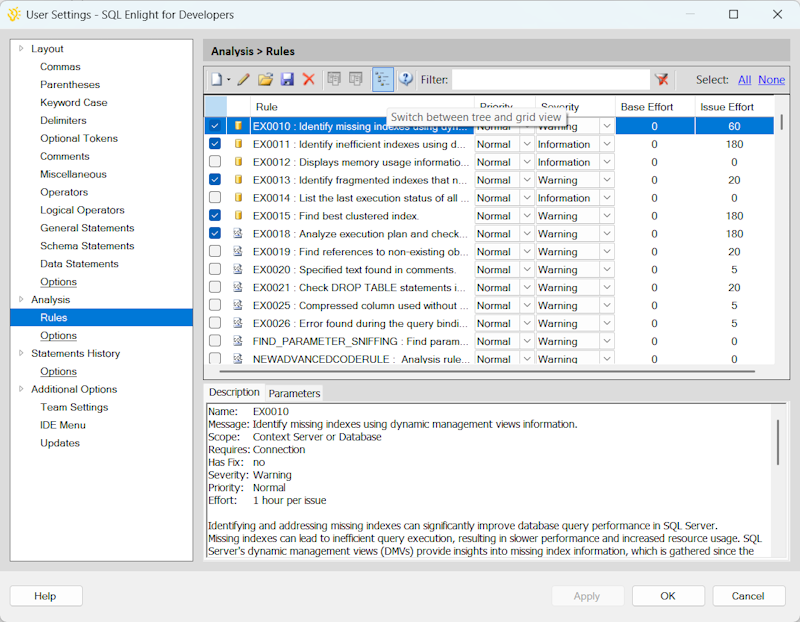
The following columns are available:
| Column | Description |
|---|
Grid View is optimized for bulk editing, rapid scanning, and sorting by severity, priority, or effort.